


Set up a Commercial Feed for Company Cards
Set up a Commercial Feed for Company Cards
Commercial card feeds are file-based connections managed by your bank that import company card transactions into Expensify. After a commercial card feed is set up, the individual cards under the commercial card account become available to assign to workspace members. Once a card is assigned, its transactions import into the assigned member’s account as expenses that can be added to reports.
Before you begin, contact your bank to confirm that your card program is eligible for a commercial card feed.
If you’re not eligible for a commercial card feed, you can set up a direct connection for company cards or import company card transactions from a spreadsheet.
Who can set up a commercial card feed
To set up a commercial card feed, you must:
- Be a workspace admin or card admin for a workspace on the Collect or Control plan.
- Have Company cards enabled on the workspace.
Note: Workspaces on the Collect plan are limited to one company card connection. Learn about the different plan types available in Expensify.
How to set up a new commercial card feed
- In the navigation tabs (on the left on web, on the bottom on mobile), select Workspaces > [Workspace name].
- Select Company cards.
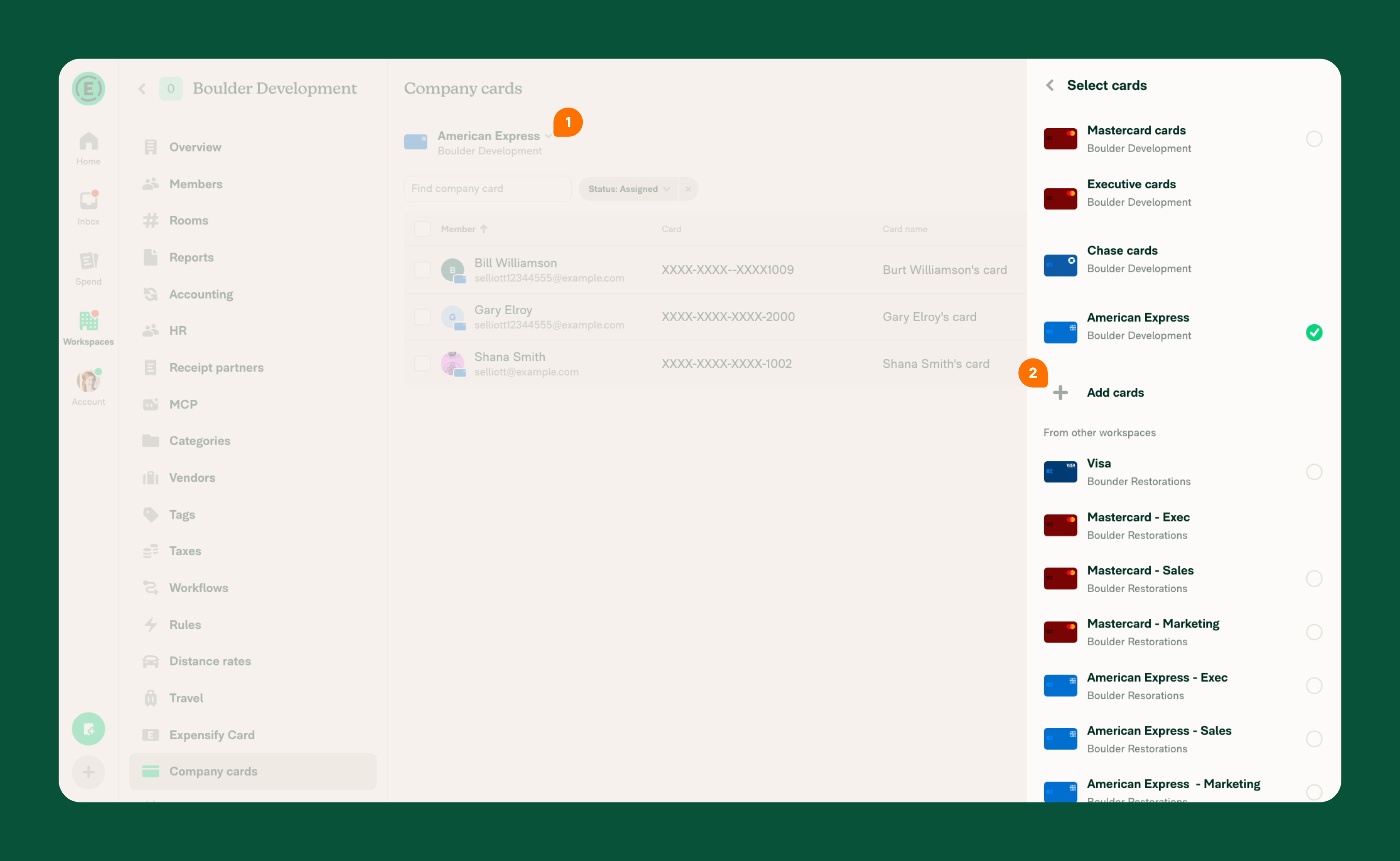
- Select Add cards to set up your first connection.
- If you don’t see Add cards, select your existing company card feed connection, then select Add cards.
- Choose the country your bank is located in and select Next.
- Select Commercial feed, then select Next.
- Choose your card issuer, then select Next.
The setup instructions for your card issuer explain what to request from your bank and what information you’ll need to complete the setup in Expensify. In most cases, your bank must first set up the feed and provide you with the required enablement details before you can finish connecting it in Expensify.
How to enable a Mastercard commercial card feed (CDF)
To set up a Mastercard commercial card feed, your bank must deliver your transaction data to Expensify through Mastercard’s SmartData portal.
- Ask your bank to deliver your CDF (Common Data File) to Expensify via SmartData.
- File type must be CDF v3 Release 11.01.
- Specify the earliest transaction date you want included.
- When the feed has been enabled, your bank will send you a Distribution ID.
- In Expensify, go to Workspaces > [Workspace name] > Company cards > Add cards.
- Choose Commercial feed, then select Mastercard Commercial Cards.
- Enter the Distribution ID and submit.
Expensify will notify you when the feed is set up.
How to enable a Visa commercial card feed (VCF)
Visa commercial card feeds are configured through your bank using Visa’s Subscription Management portal.
- Ask your bank’s relationship manager to enable your VCF (Visa Commercial Format) feed and send it to Expensify.
- Mention: “You can check a box in Visa’s Subscription Management portal to enable feed delivery — no test file needed.”
- Request the feed details:
- Processor ID
- Bank (Financial Institution) ID
- Company ID
- In Expensify, go to Workspaces > [Workspace name] > Company cards > Add cards.
- Choose Commercial feed, then select Visa Commercial Cards.
- Enter the required IDs and submit.
Expensify will notify you when the feed is connected.
How to enable an American Express commercial card feed (GL1025)
To set up an American Express corporate feed, you’ll need to complete and email their required forms.
- Download the forms: American Express feed setup forms (Google Drive).
- Complete the form as follows:
- Page 1: Fill in legal company details, requestor name and email, feed start date, and Control Account Number (not a credit card number).
- Page 2: Leave blank.
- Page 3: Re-enter client name and control account.
- Page 4: Add country, authorization name, title, and signature (DD/MM/YY format).
- Email the completed forms to electronictransmissionsteam@aexp.com.
- Wait for the Production Letter containing your feed’s file name.
- In Expensify, go to Workspaces > [Workspace name] > Company cards > Add cards.
- Choose Commercial feed, then select American Express Corporate Cards.
Expensify will notify you when the feed is connected.
What happens after a commercial card feed is connected
- All cards with transactions posted after the feed enablement date appear as a list and can be assigned to workspace members.
- After a card is assigned, posted transactions import into the assigned member’s account automatically as expenses.
Learn how to assign company cards.
FAQ
What can I do if my bank doesn’t offer a commercial card feed?
If you’re not eligible for a commercial card feed, connect company cards using a direct connection instead. Learn how to set up a direct connection for company cards.
Can I connect the same commercial card feed across different workspaces?
Yes, commercial card feeds can be shared across workspaces. Learn how to share a company card connection across workspaces.


