


Set up a Direct Connection for Company Cards
Set up a Direct Connection for Company Cards
When you set up a direct connection, you connect your company’s credit card account to Expensify through your bank or card provider. The individual cards under the connected account then become available to assign to workspace members. Once a card is assigned, its transactions import into the assigned member’s account as expenses that can be added to reports.
If your bank isn’t supported, you can import company card transactions from a spreadsheet instead.
Who can set up a direct connection
To set up a direct connection, you must:
- Be a workspace admin or card admin for a workspace on the Collect or Control plan.
- Have Company cards enabled on the workspace.
- Have master login credentials for your organization’s online banking account.
Note: Workspaces on the Collect plan are limited to one company card connection. Learn about the different plan types available in Expensify.
How to set up a direct connection
- In the navigation tabs (on the left on web, on the bottom on mobile), go to Workspaces > [Workspace name].
- Select Company cards.
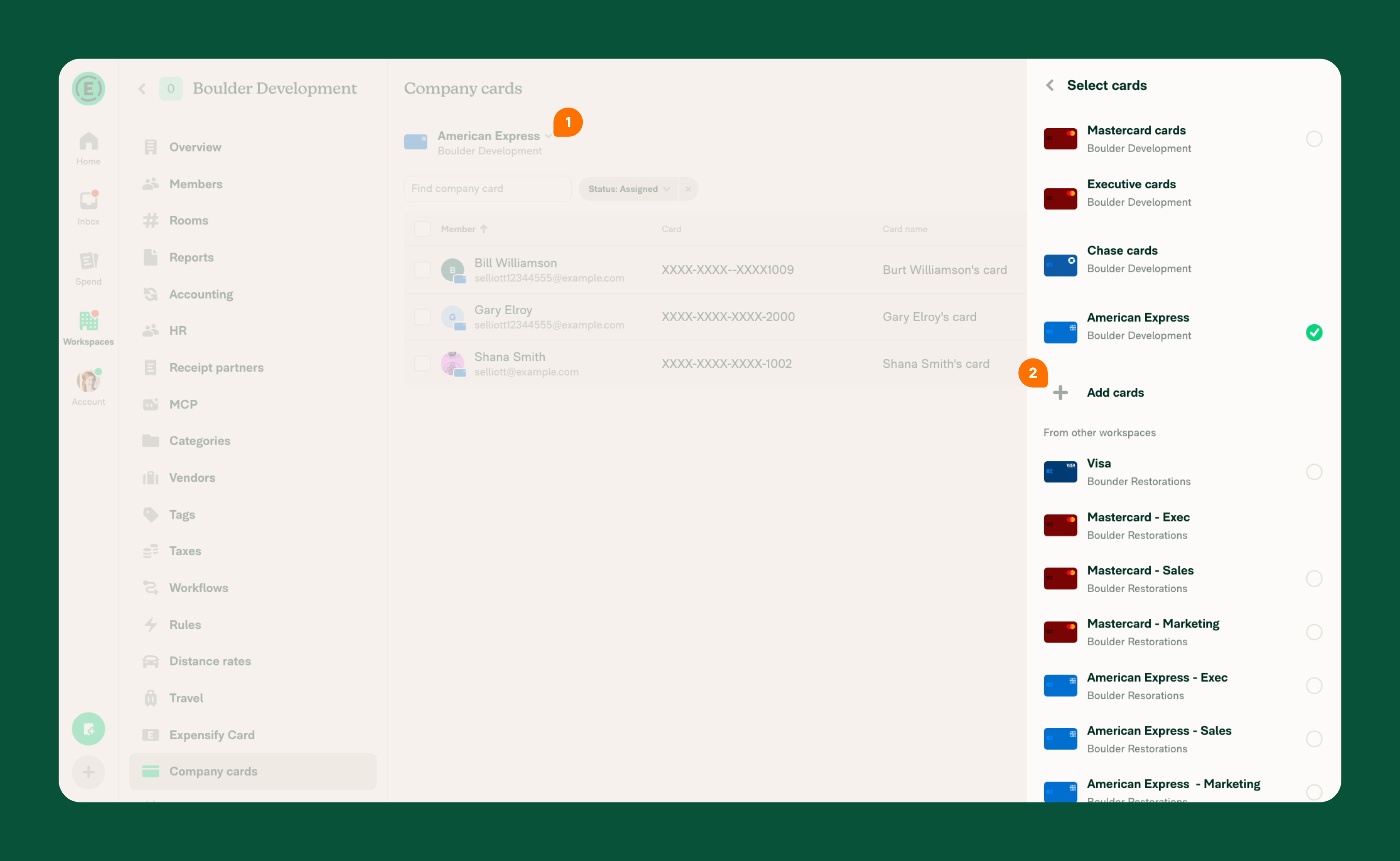
- Select Add cards to set up your first connection.
- If you don’t see Add cards, select your existing company card connection, then select Add cards.
- Choose the country your bank is located in and select Next.
- Choose Direct feed and select Next.
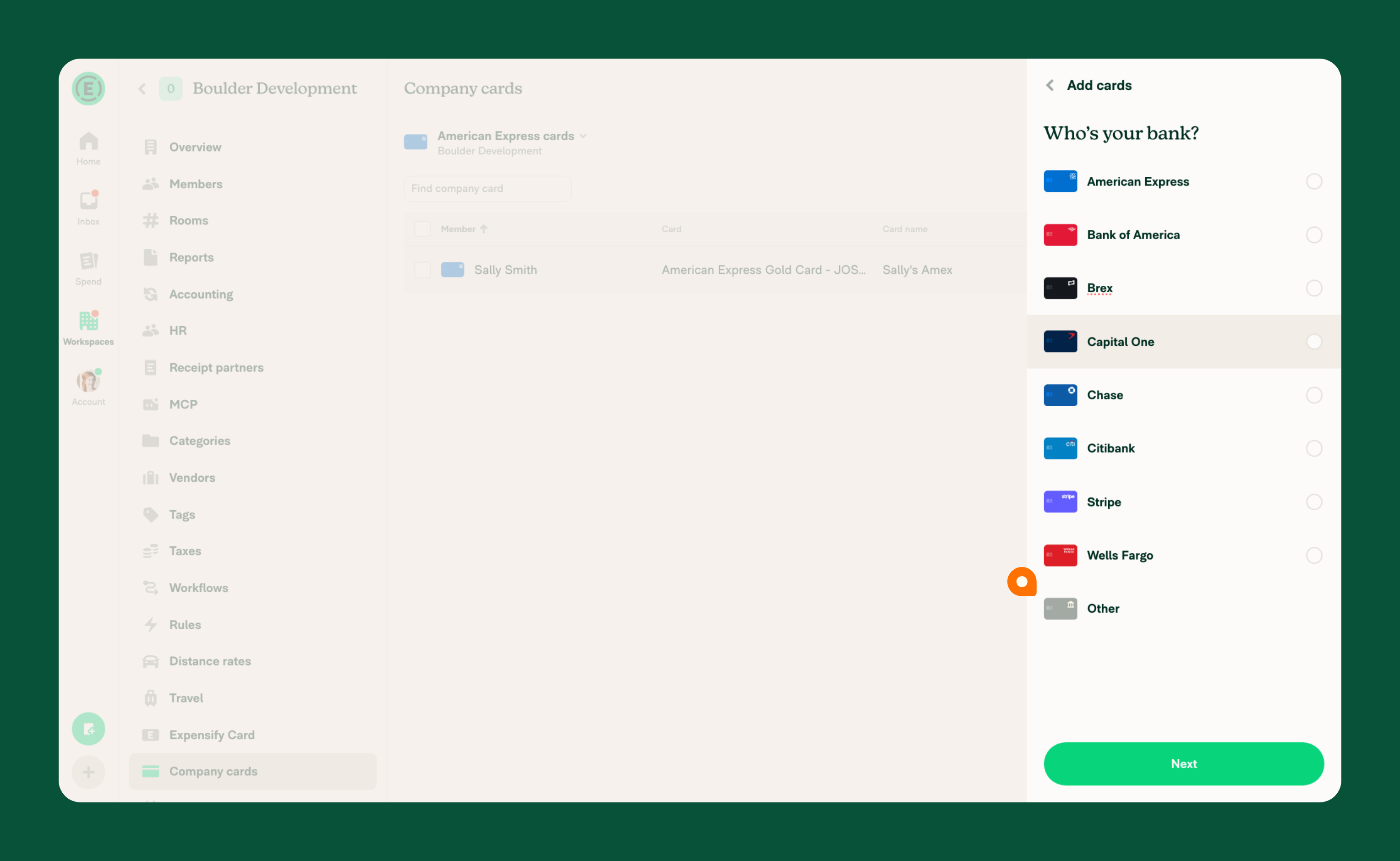
- Choose your bank from the list, or select Other to see additional banks.
- Follow the prompts to authenticate the connection using the master online banking credentials for your organization.
What happens after you set up a direct connection
- Cards with recent expenses appear as a list and can be assigned to workspace members.
- After a card is assigned, posted transactions import into the assigned member’s account automatically as expenses.
- If the card is connected through Plaid, pending transactions also import. They’re marked as pending until they post. Learn which connections import pending transactions.
- For connections made through Plaid, the Company cards page shows the account’s Current balance and Remaining limit when your bank reports them.
Learn how to assign company cards.
FAQ
Why don’t newly issued cards appear in the assignment list?
Direct connections cache the card list when first connected. If your bank issues new cards after the initial setup, they won’t appear automatically. To refresh the card list:
- From the list of cards under Company cards in your workspace, select Settings.
- Select Assign new cards.
- Complete the bank reauthentication to pull the latest cards from your bank.
New cards will then be available for assignment.
How can I resolve an error when setting up a direct connection?
If you receive an error while connecting your bank or card provider, find the error and follow the recommended troubleshooting steps.
What should I do if I can’t connect to my bank?
If you have trouble connecting American Express, Bank of America, Brex, Capital One, Chase, Citibank, Stripe, or Wells Fargo using the connection shown in the bank list, try connecting through Plaid using the Other option instead:
- In the navigation tabs (on the left on web, on the bottom on mobile), go to Workspaces > [Workspace name].
- Select Company cards.
- Select Add cards to set up your first connection.
- If you don’t see Add cards, select your existing company card connection, then select Add cards.
- Choose the country your bank is located in and select Next.
- Choose Direct feed and select Next.
- When asked Who’s your bank?, select Other. Then select Next.
- In the window that opens, authenticate with Plaid or choose Continue without a phone number.
- Search for and select your bank or card provider.
- Follow the prompts to authenticate the connection using the master online banking credentials for your organization.
If you’re still unable to connect to your bank, you can import company card transactions from a spreadsheet instead.
Can I connect the same company card account across different workspaces?
Yes, direct connections can be shared across workspaces. Learn how to share a company card connection across workspaces.
Do pending transactions import from a direct connection?
Pending transactions import only for cards connected through Plaid (the Other option in the bank list). Cards connected to any other bank in the list import transactions after they post, which typically takes 1–3 business days.
When a pending transaction imports:
- It’s marked as pending until it posts.
- It updates automatically when the transaction posts.
- It’s removed if the bank cancels the transaction or it doesn’t post.
A report can’t be submitted or approved while every expense on it is pending.
If you delete a pending expense, the transaction may import again after it posts.
Can I import debit card transactions?
Yes, debit card transactions can be imported by following the same steps for setting up a direct connection for company cards.
How can I check if my bank is supported?
Below are examples of banks that support direct connections. This is not a complete list:
- American Express
- Bank of America
- Brex
- Capital One
- Chase
- Citibank
- Stripe
- Wells Fargo
Plaid enables connections with hundreds of additional banks across the U.S., Canada, and Europe. Check the Plaid coverage page for US/Canada or the Plaid coverage page for UK/Europe to see if your bank is supported.


